Features

The complete list. Promptly appears next to the text you select on your Mac or Windows PC, with your prompt library one click away.

See what you can do with Promptly

The popup

From selected text to a ready-to-send prompt

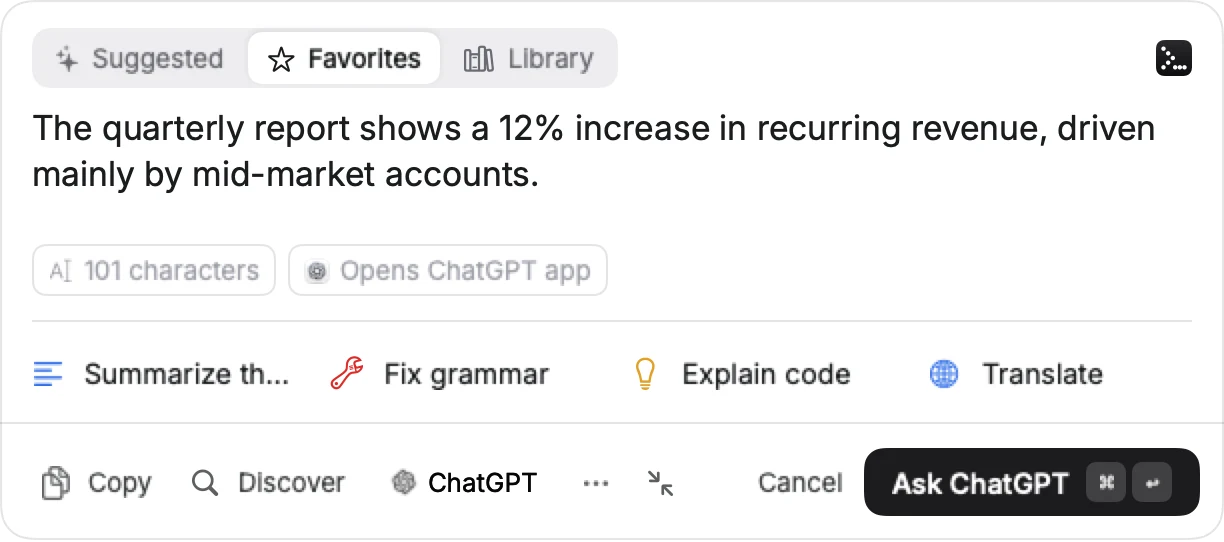
The popup appears when you select text — anywhere on your Mac or Windows PC, or from the menu bar icon on Mac. It never covers the selection, and your library is one click away. Switch between Full and Minimal at any time.

See how the popup works
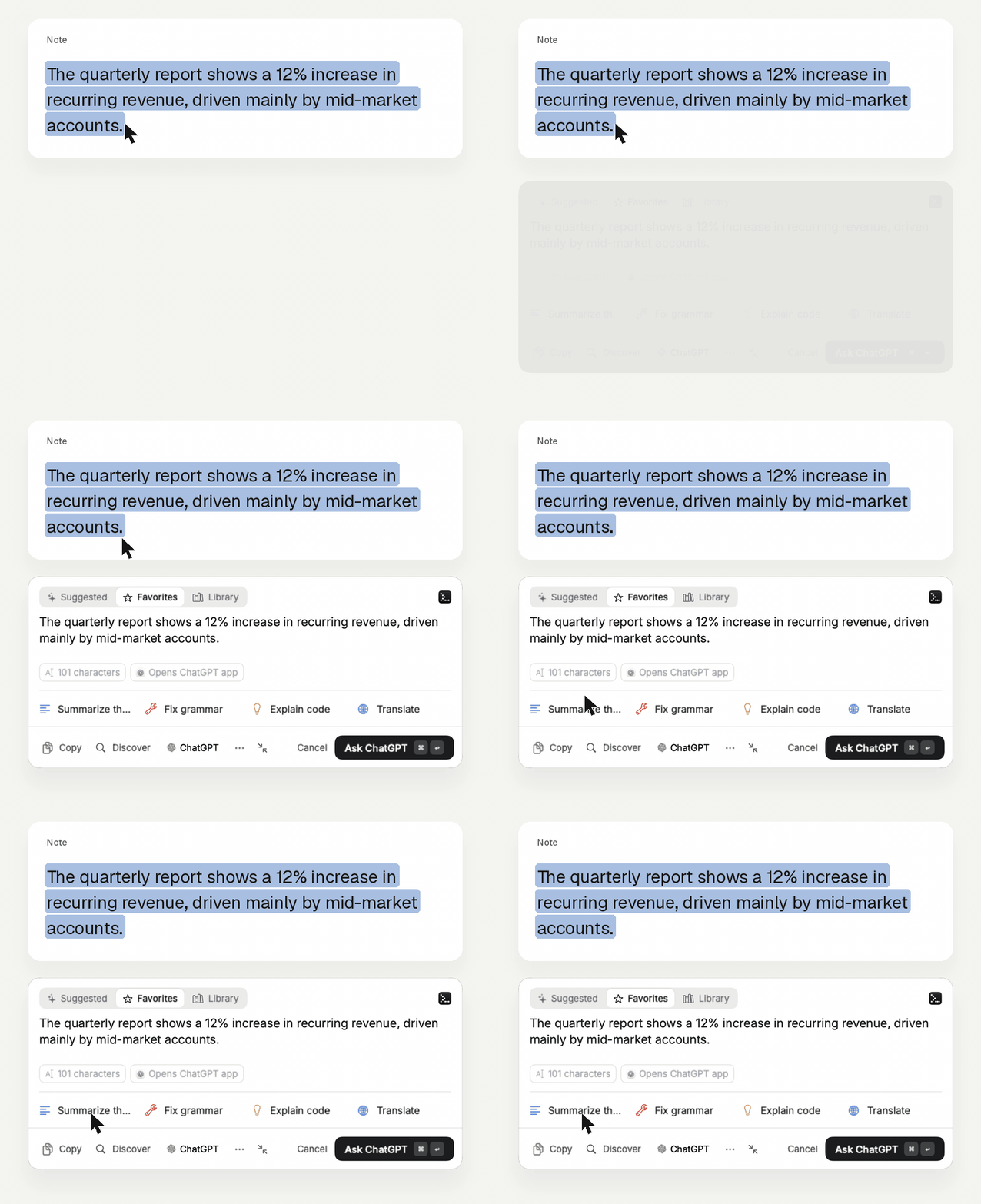
The Promptly popup appearing next to selected text, then the cursor moving to a prompt in Favorites.

Library

From a saved prompt to the text you just selected

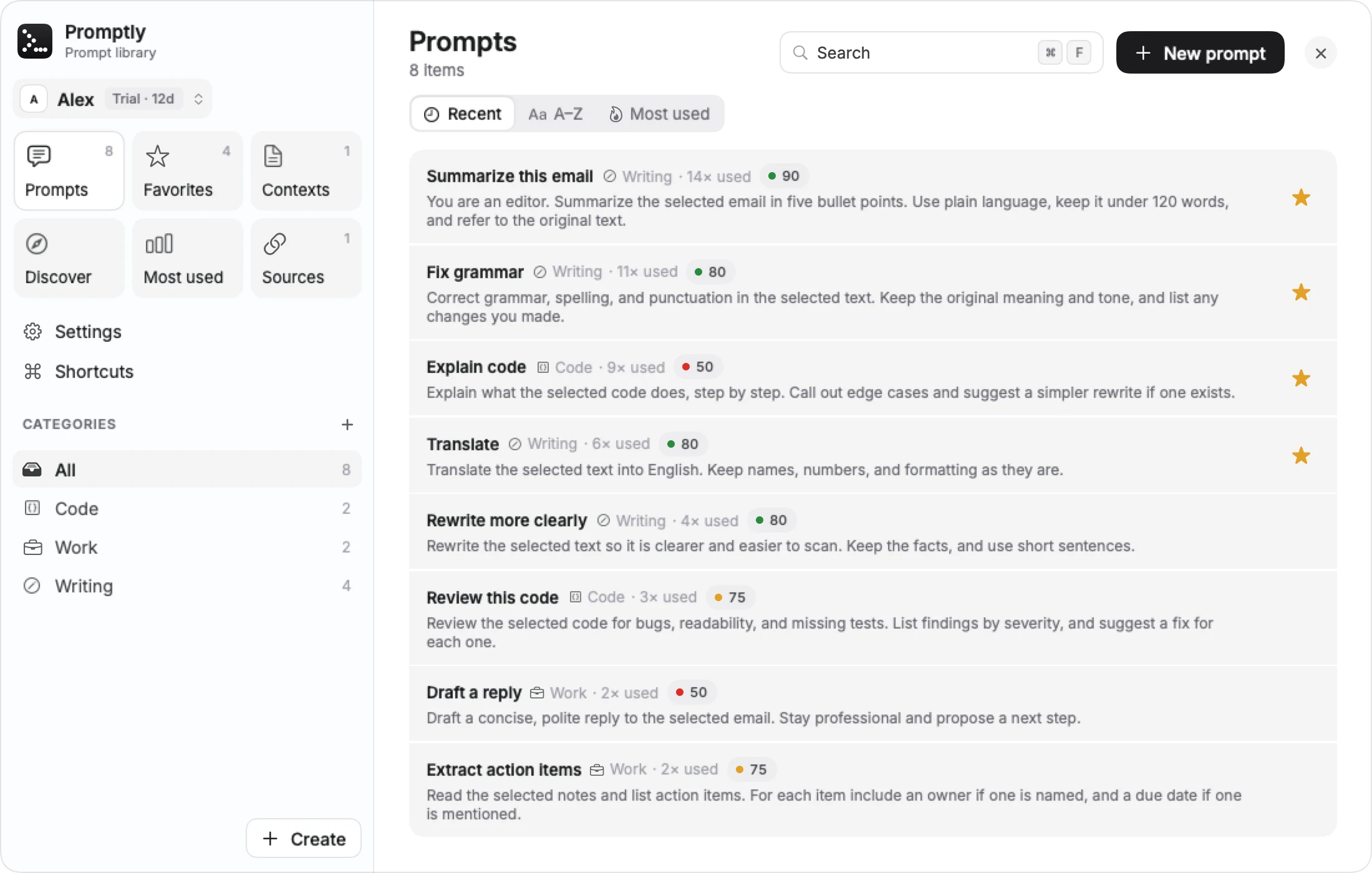
Save prompts and contexts on your Mac or Windows PC. Organize them with categories, star Favorites so they appear first, and sort by Recent, A–Z, or Most used.

See the library
Promptly Library with prompts such as Summarize this email, Fix grammar and Explain code, each with a quality score.

Quality score

Check the prompt before you send it

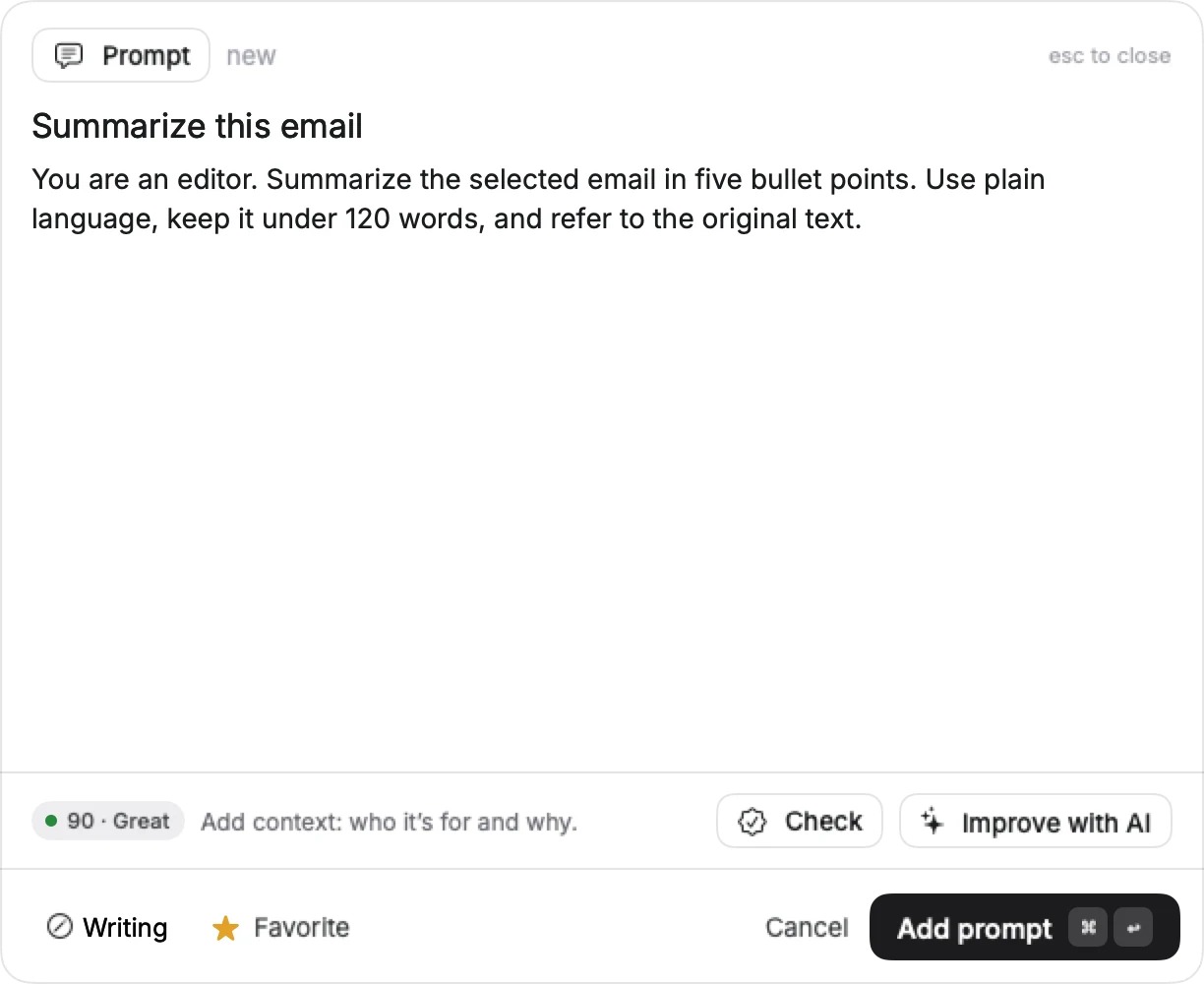
Every prompt gets an instant quality score from 0–100 — Great, Good, or Needs work — plus a tip to improve it. Check runs an AI review; Improve with AI rewrites the prompt, and you choose Use this or Discard. On Mac, when Apple Intelligence is turned on, this runs on-device.

Prompt editor for Summarize this email, with a quality score of 90, Great, and a tip to add context.
See quality score

Send to any AI

One popup, the AI you already use

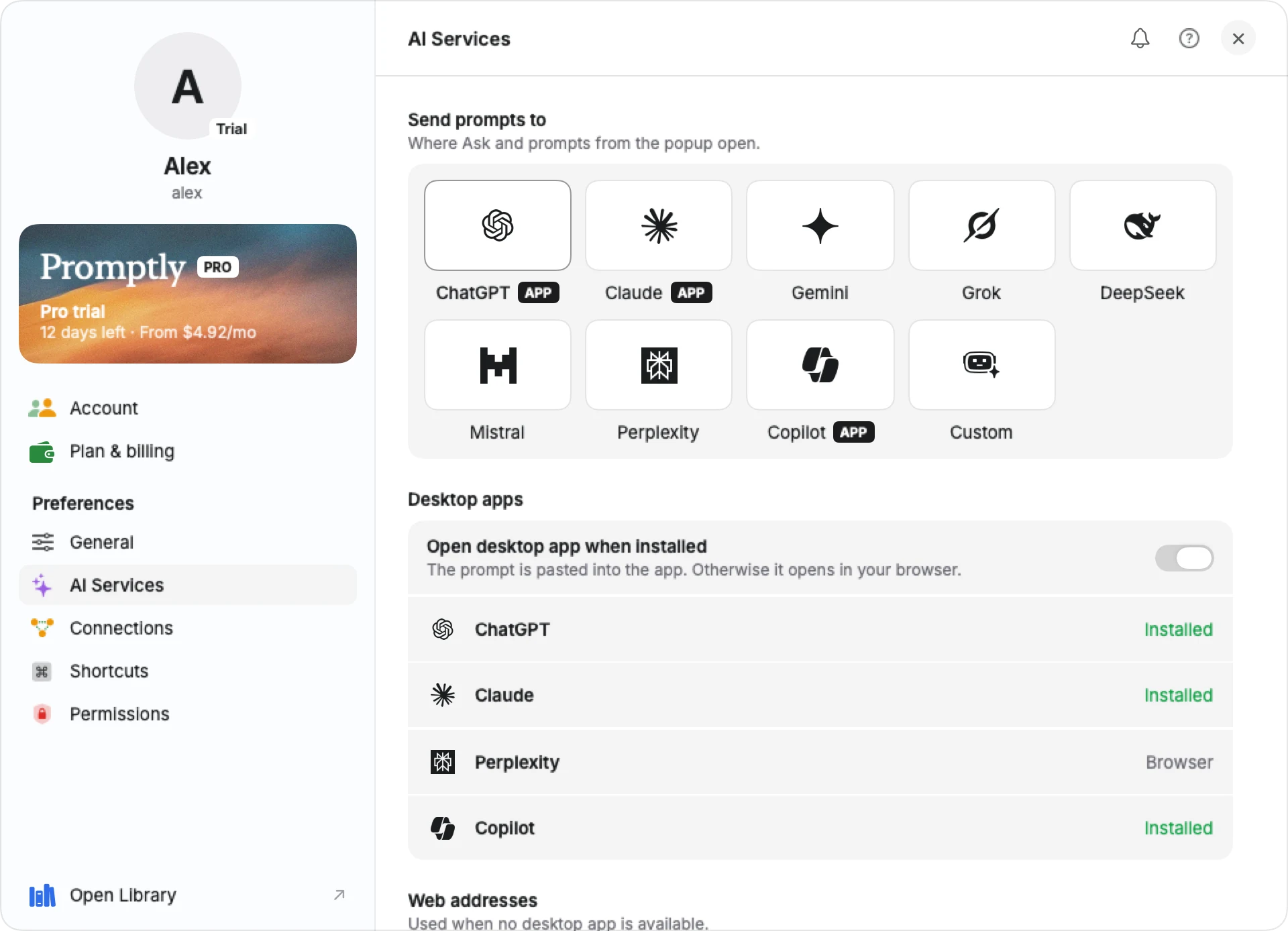
ChatGPT, Claude, Gemini, Grok, DeepSeek, Mistral, Perplexity, Microsoft Copilot, or a custom URL. If the ChatGPT, Claude, Perplexity or Microsoft 365 Copilot desktop app is installed, Promptly opens it and pastes the prompt automatically.

Settings, AI Services: ChatGPT, Claude, Gemini, Grok, DeepSeek, Mistral, Perplexity, Copilot and Custom.
See AI services

Discover

Browse prompts, then save the ones you want

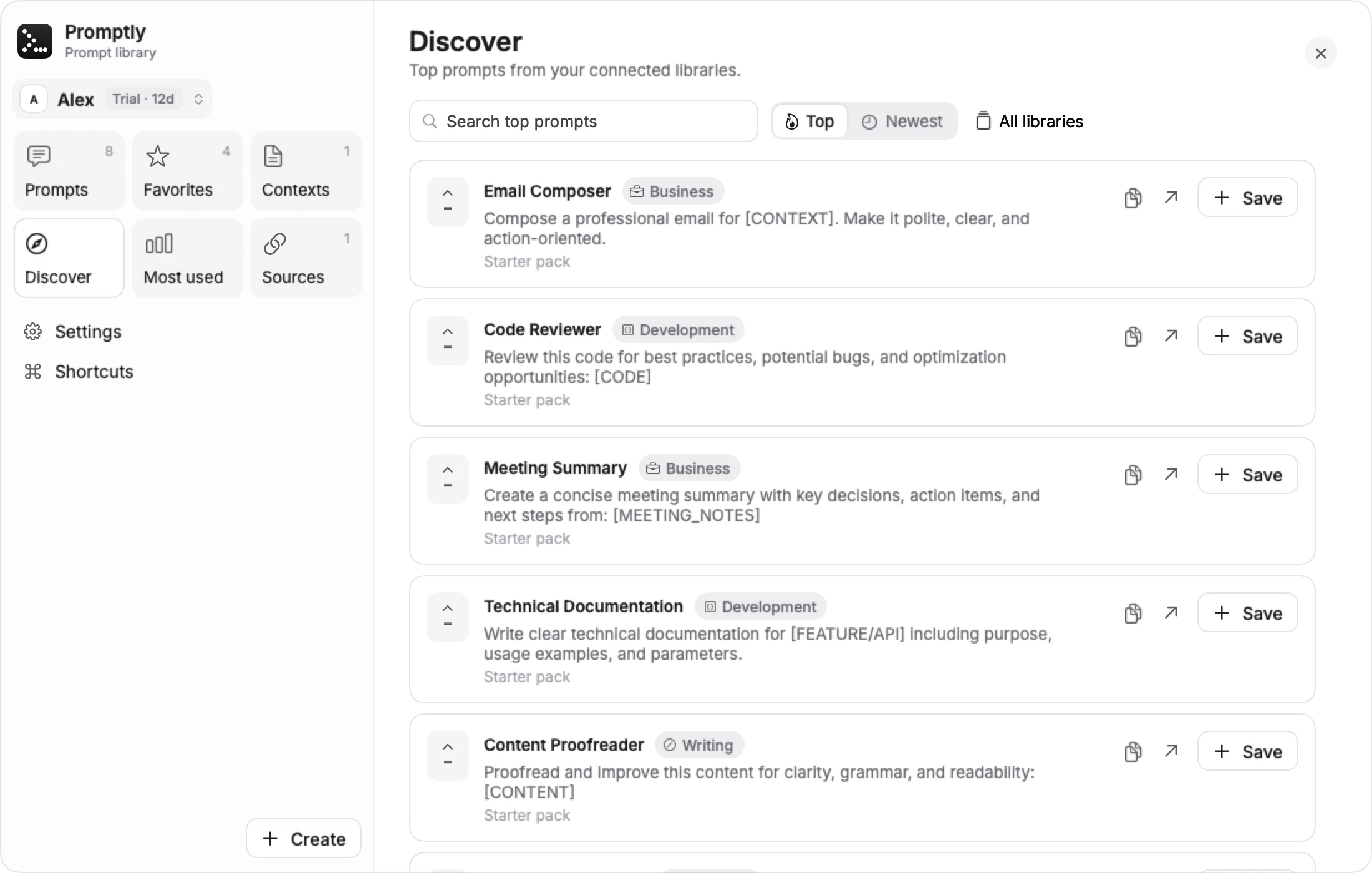
Browse and search prompts from connected libraries, for example prompts.chat. Copy, Ask, or Save a prompt into a category in one click.

Discover view browsing starter-library prompts such as Email Composer and Code Reviewer.
See Discover
Over the shoulder, a person at a MacBook with the Promptly library open on the screen.

The same popup behind every ask

The selected text, the prompt, and the AI — in one step

Your library stays on your Mac or Windows PC. Select text in any app, pick a prompt, and send it to the AI you already use — without copying, switching, and pasting each time.

See the complete list
  • Keep the library on your Mac or Windows PC

    Prompts and contexts are stored locally, in categories you name, with Favorites first in the popup.

  • Put your prompts to work

    The popup appears next to the text you select. Click a prompt to send it, or Option-click to copy it.

  • Work across the apps you already use

    Select text in a browser, Mail, Slack, Word, or a code editor, and send it to ChatGPT, Claude, or another service you choose.

  • ChatGPT
  • Claude
  • Gemini
  • Grok
  • DeepSeek
  • Mistral
  • Perplexity
  • Microsoft Copilot
  • Custom URL

Sources: prompts.chat, Slack, Microsoft 365, or a custom JSON or CSV URL. Tokens stay in the Keychain.

The complete list

Every control, in the same order as the app.

Send to any AI

Nine services, plus your own URL.

  • ChatGPT, Claude, Gemini, Grok, DeepSeek, Mistral, Perplexity, Microsoft Copilot, and Custom URL.
  • If the ChatGPT, Claude, Perplexity or Microsoft 365 Copilot desktop app is installed, Promptly opens it and pastes the prompt automatically.
  • Otherwise it opens the service in the browser with the prompt pre-filled, or copies it to the clipboard where the service doesn't accept pre-filled text.
  • Custom GPT link support for ChatGPT.
  • Custom URL with a {text} placeholder — works with internal or company AI tools.
  • Every service URL can be overridden in Settings.
Settings, AI Services: ChatGPT, Claude, Gemini, Grok, DeepSeek, Mistral, Perplexity, Copilot and Custom.

Prompt and context library

Your prompts, stored on your Mac or Windows PC.

  • Save prompts (reusable instructions) and contexts (background info the AI should know).
  • Categories with icons: create, rename, delete, and filter by category.
  • Favorites (star) are shown first in the popup.
  • Sort by Recent, A–Z, or Most used.
  • Search (⌘F), New (⌘N), double-click to edit, and delete with ⌫.
  • Most used view — a ranking of your prompts by use, with usage bars.
  • Library window sections: Prompts, Favorites, Contexts, Discover, Most used, and Sources.
Promptly Library with prompts such as Summarize this email, Fix grammar and Explain code, each with a quality score.

Prompt quality score

A check on the prompt before you send it.

  • Every prompt gets an instant quality score (0–100) with a colour indicator: Great, Good, or Needs work.
  • Scored on a clear task, role, context, output format, constraints, and a reference to the input.
  • Shows the top tip to improve the prompt.
  • Check — an AI review with a score and up to 3 concrete suggestions.
  • Improve with AI — rewrites the prompt; you choose “Use this” or “Discard”.
  • On Mac, this runs on-device with Apple Intelligence when it is turned on (private, no data leaves the Mac). Otherwise the request opens in your chosen AI service.
  • The instant score currently understands English prompts best.
Prompt editor for Summarize this email, with a quality score of 90, Great, and a tip to add context.

Discover prompts

Browse prompts from connected libraries.

  • Browse and search top prompts from connected libraries (for example prompts.chat).
  • Sort by Top or New, and filter by library.
  • Copy, Ask, or Save a prompt into a category in one click. Promptly suggests a matching category, or creates one.
Discover view browsing starter-library prompts such as Email Composer and Code Reviewer.

Sources and connections

Shared libraries; on Mac, tokens stay in the Keychain.

  • prompts.chat — a public prompt library.
  • Starter library — bundled sample prompts.
  • Custom JSON or CSV URL — host your team's prompt library anywhere.
  • Slack — connect a workspace to pull shared prompts.
  • Microsoft 365 — sign in with a device-code flow and use prompts shared in SharePoint or OneDrive.
  • On Mac, tokens are stored in the macOS Keychain.

Settings

Everything you can adjust.

  • Account: name, email, and profile photo.
  • Billing: plan selection (see Pricing).
  • General: popup style, auto-hide, hide-after time, distance from the cursor, show favorites, click sounds on or off, and library data location (Show in Finder).
  • AI: choose a service, desktop app on or off, and web addresses.
  • Sources: manage connected libraries.
  • Shortcuts: a list of keyboard shortcuts.
  • Permissions: live Accessibility status and step-by-step setup.
  • Appearance: System, Light, or Dark.
  • Help menu: What's new (coming soon), Help (coming soon), Report a problem (a bug-report form that prepares an email with the app version, macOS version, screen and theme), and Keyboard shortcuts.

Keyboard shortcuts

From the app.

ActionKeys
Ask the AI service⌘↩
Copy prompt + text⌥click
Settings⌘,
Closeesc
New prompt or context⌘N
Search library⌘F
Editdouble-click
Delete selected⌫

Modeled estimate

The time you get back

Best estimate: about 1.2 hours per week for a typical, active AI-using knowledge worker. Change the number of asks to see the modeled midpoint and range. This is a conservative modeled range for quicker access to reusable prompts — not a measured result from Promptly users, and not the larger productivity benefit of generative AI itself.

15

1.17hours modeled midpoint per week
0.75–1.63hours modeled weekly range
14.06hours modeled, over 12 weeks
60.94hours modeled, over 52 weeks

Modeled hours over 52 weeks

Cumulative, at 15 asks a day

How this is calculated. The slider uses the midpoint from the note: 45 seconds of direct saving plus 15% of interactions avoiding a 75-second retry, over five working days. At 15 asks a day that is 1.17 hours a week, rounded in the note to a best estimate of about 1.2 hours. The range uses the note’s low and high assumptions (30 seconds + 10% × 60 seconds, versus 60 seconds + 20% × 90 seconds). For a typical user that is approximately 0.75–1.6 hours a week. The chart shows cumulative modeled hours over 52 weeks, not a measured year. Claims substantially above 2 hours a week for an ordinary user would need actual usage telemetry. This is the incremental value of quick access to reusable, high-quality prompts — not the larger productivity benefit of generative AI itself. Read the full note, including sources.

Documented user types, from the note: light (5 a day) 0.2–0.4 hours a week; typical (15 a day) 0.75–1.6, best estimate ~1.2; heavy (30 a day) 1.5–3.3.

Writing

Select a paragraph in Mail or Pages, apply a rewrite prompt, and send it to ChatGPT or Claude without leaving the document.

Support

Select a customer message, pick your reply prompt, and open the AI you already use with the text already filled in.

Code

Select an error or a function, click a debug prompt, and send it on — no copy, switch, and paste in between.

The path Promptly takes

Select text, pick a prompt, press Ask — filmed from the Mac app.

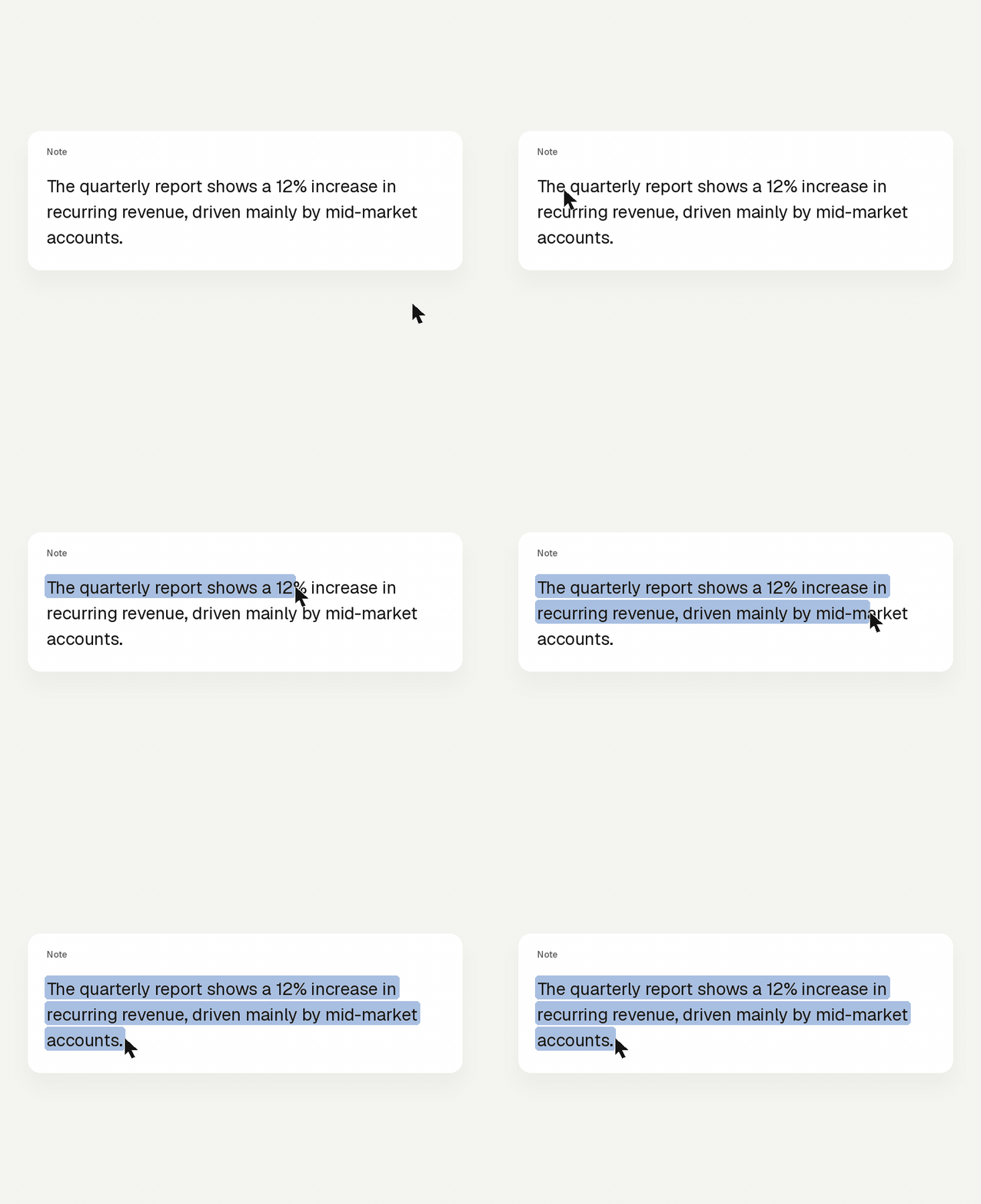
Selecting a sentence in a document on a Mac.
1. Select In any app — browser, Mail, Slack, Word, or a code editor.
The Promptly popup appearing next to the selected text, with prompts to choose from.
2. Pick a prompt The popup appears next to your cursor, with your library one click away.
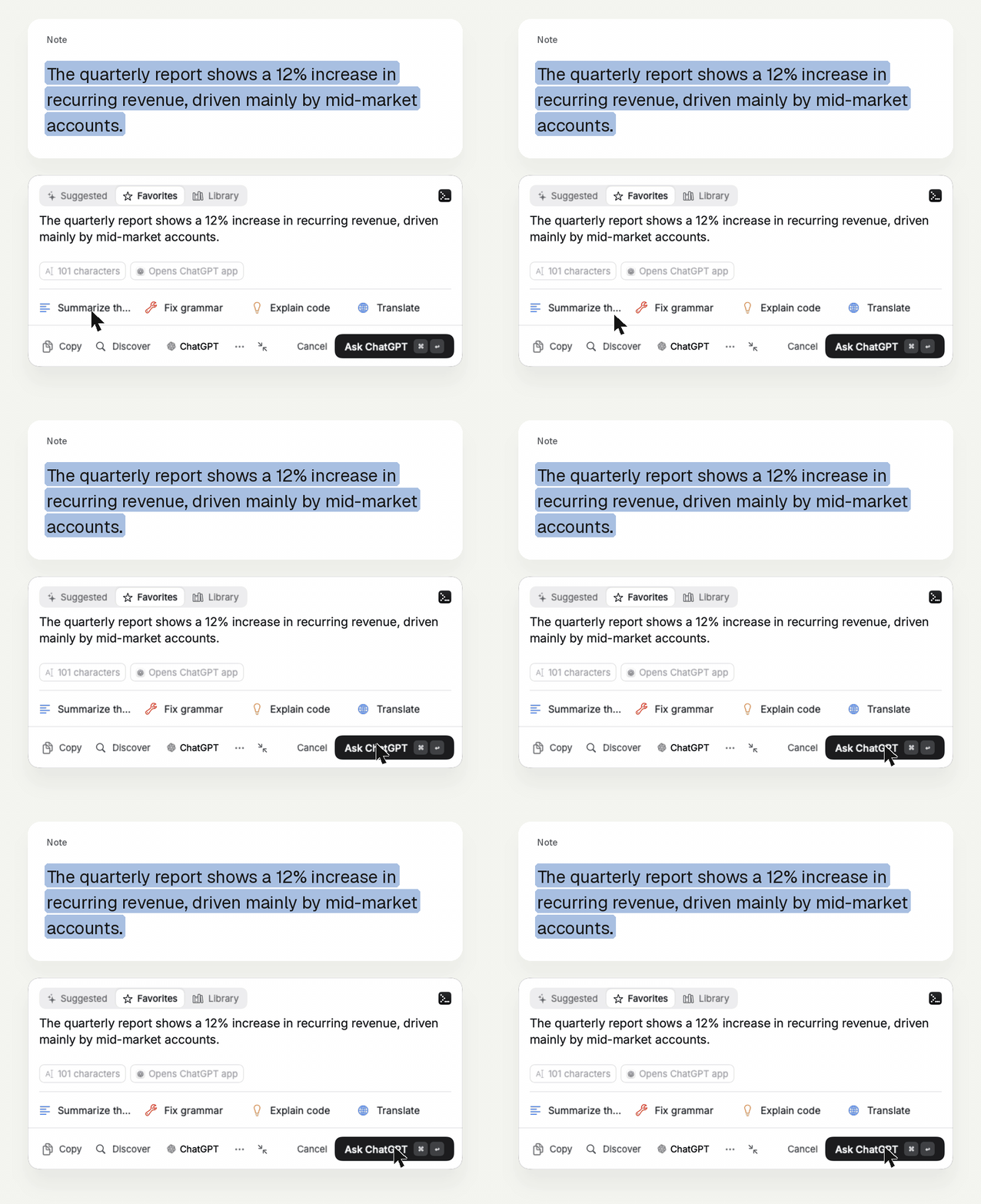
Pressing Ask in the Promptly popup to send the prompt and selected text to an AI service.
3. Ask Promptly opens the AI service with the prompt and your text already filled in.